Step 1: Creating a New Closed Claim Form (All Forms)
The New Closed Claims Wizard will guide you step-by-step through creating
a new closed claim A demand for payment from a self-insured entity or an insurer for losses sustained by a claimant. form. After entering all data pertaining to a given
claim you may review the data before submitting it to the Office of Insurance
Regulation.
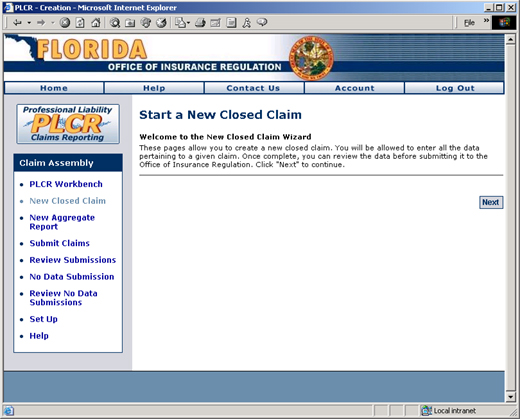
To Start a New Closed Claim Filing
Click the New
Closed Claim link from the PLCR Workbench task bar. The
Start a New Closed Claim page will display.
Click the Next
button to continue.
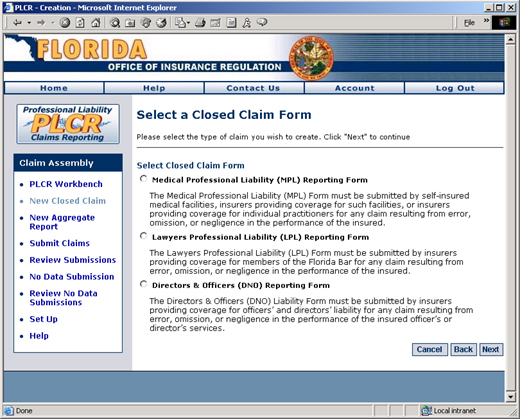
Select a Closed Claim Form (MPL, LPL, or DNO)
Click the Next
button.
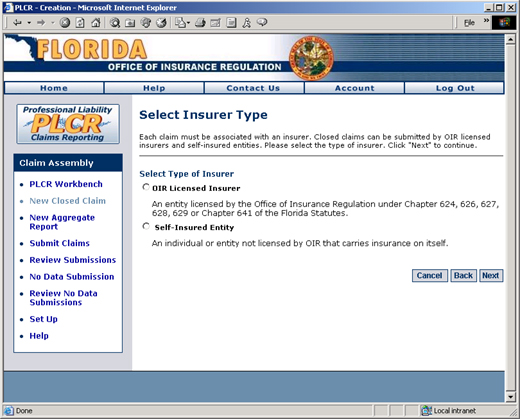
Select Insurer Type
Select the type of insurer An entity licensed by OIR under Chapter 624 (p. III) or Chapter 641 (p. I) of the Florida Statutes. by clicking the radio
button next to OIR Licensed Insurer or Self-Insured An individual or entity that has not purchased liability insurance. Entity.
Click the Next
button to continue.
The Select Insurer Type
Page
OIR Licensed Insurers
If you
selected OIR Licensed Insurer the Select OIR Licensed Insurer page will
display. If
you selected Self-Insured Entity, skip to step 7 under Self Insurers below.
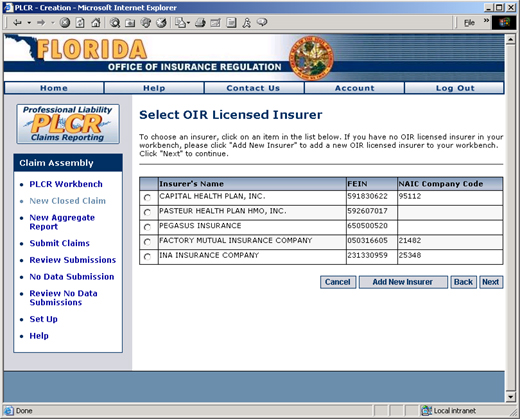
The Select OIR Licensed Insurer Page
To choose an insurer, click the radio button next
to the insurer in the list of available licensed insurers. If you have
no OIR licensed insurer in your Workbench, click the Add
New Insurer button to add a new OIR licensed insurer to your Workbench.
Visit the
Setting Up a
Licensed Insurer help page for more information about adding a new
licensed insurer.
Click the Next
button. The
Select Coverage Type page will display. Proceed
to step 10 below.
Self Insurers
If you
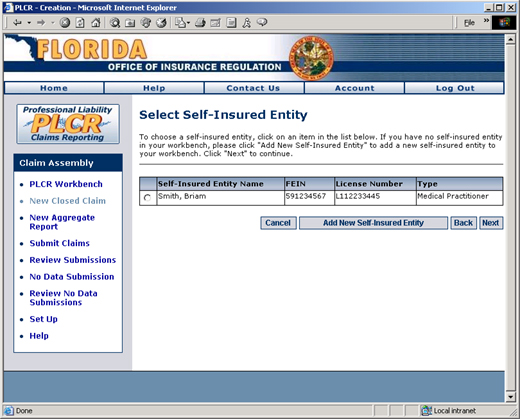
selected Self Insured Entity the Self Insured Entity page will display.
The Select Self Insured Entity Page
To choose a self insurer,
click the radio button next to the insurer in the list of available self
insurers. If you have no self insurer in your Workbench, click the Add New Self-Insured Entity button to
add a new self insurer to your Workbench. Visit
the Setting Up a
Self Insurer help page for more information about adding a new self
insurer.
Click the Next
button. The
Select Claim Number and Name page will display. Skip
to step 12 below.
Coverage Type
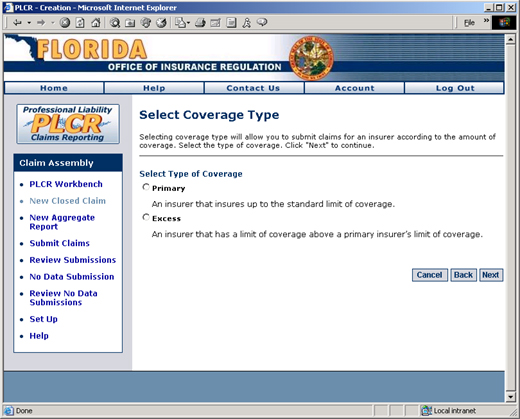
The Select Coverage Type page will allow you to
submit claims for an insurer according to the amount of coverage. Select
the type of coverage, either Primary or Excess.
Primary Coverage
- An Insurer that insures up to the standard limit of coverage.
Excess Coverage
- An insurer that has a limit of coverage above a primary insurer’s limit
of coverage.
The Select Coverage Type
Page
Click the Next
button.
Claim Number and Name
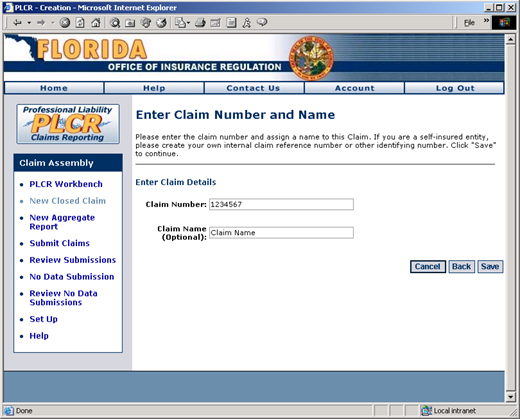
Enter the claim number. If you are a self-insured
entity, please create your own internal claim reference number or other
identifying number.
Assign a name to this claim for your own reference,
if you wish.
The Enter Claim Number
and Name Page
Click the Save
button. The Claim Summary page will display.
You've now completed the initial steps for creating your new closed
claim form. Please review Step 2 - Understanding
the Claim Summary Page before proceeding to fill in your specific
closed claim form.