
Florida Department of Financial Services
Create a New Submission
Upload Documents
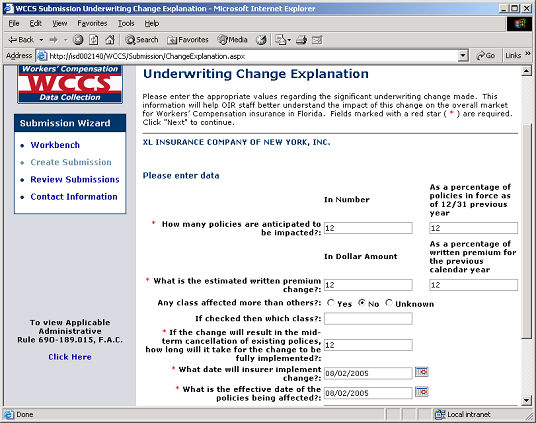
The ability to view/upload/remove documents is accessible through the Underwriting Change Explanation screen. This feature is accessible for Significant Underwriting Change submissions.
To view/upload/remove documentation to the submission, click the View/Upload/Remove Document button.
WCCS: Underwriting Change Explanation Screen
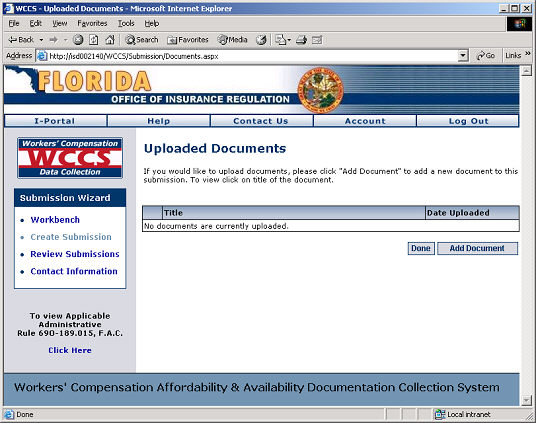
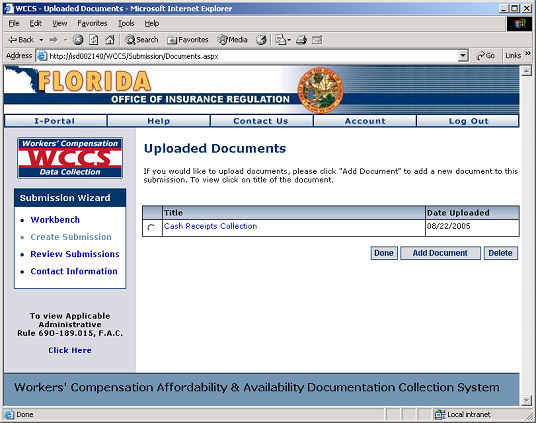
The Uploaded Documents screen is displayed, which will automatically display any documentation that has previously been attached to the submission. If a new submission is in the process of being created, then no documentation will appear on the page. To add a document, click the Add Document button.
WCCS: Uploaded Documents Screen
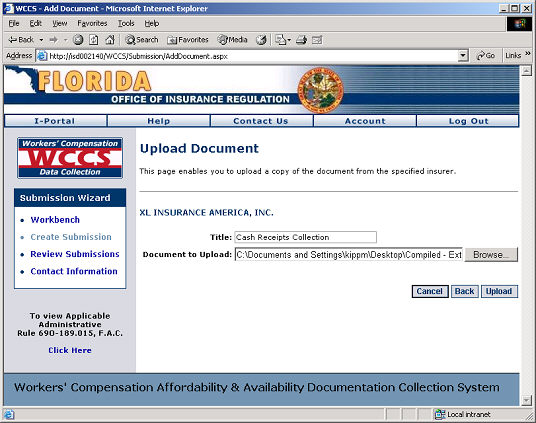
From the Add Document screen, give the document a name by typing in the name of choice in the Title field.
Select the document from your desktop or server that will be uploaded and attached to WCCS by clicking the Browse button next to the Document to Upload field.
Click the Upload button to proceed.
WCCS: Add Document Screen
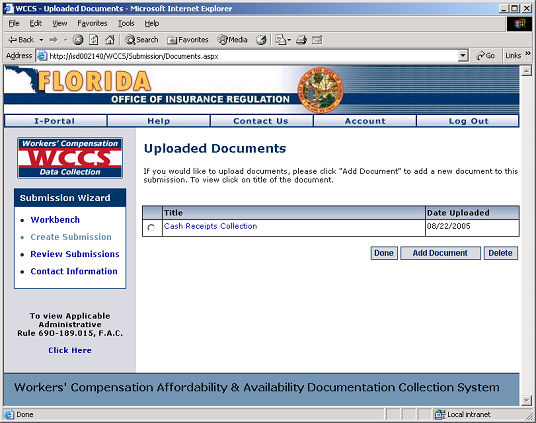
The Uploaded Documents screen is displayed, which now includes the document that was recently uploaded to WCCS. From this point, users may view the document or remove it from the system.
WCCS: Uploaded Documents Screen
View Documents
The ability to view/upload/remove documents is accessible through the Underwriting Change Explanation screen. This feature is accessible for Significant Underwriting Change submissions.
To view/upload/remove documentation to the submission, click the View/Upload/Remove Document button.
The Uploaded Documents screen will be displayed. Click on the hyperlinked filename of the document you wish to view.
WCCS: Uploaded Documents Screen
The document will open in the appropriate word processor software.
Remove Documents
The ability to view/upload/remove documents is accessible through the Underwriting Change Explanation screen. This feature is accessible for and Significant Underwriting Change submissions.
To view/upload/remove documentation to the submission, click the View/Upload/Remove Document button.
The Uploaded Documents screen will be displayed, which include the name of all files currently attached to a submission. Click the radio button next to the name of the file to be deleted.
Click the Delete button to remove the selected document.
WCCS: Upload Documents Screen - Delete
Next Step: