

Re-submitting Claim Forms and Aggregate ReportsPLCR allows you to update and correct any previous submissions you've made to the Office of Insurance Regulation. Upon resubmitting your claim A demand for payment from a self-insured entity or an insurer for losses sustained by a claimant. forms and/or aggregate reports you will be asked to verify that the changes you've made against the PLCR data stored from your original submission. After confirming the changes and providing an explanation for resubmission, you may resubmit your data to the Office of Insurance Regulation. Re-submissions of Closed Claim Forms and Aggregate Reports for Licensed InsurersIf you accidentally or purposefully resubmit a closed claim form or aggregate report to the Office of Insurance Regulation, the Submission Validation page will display after you click the Next button on the Confirm Contact Information page. The Submission Validation page appears below.
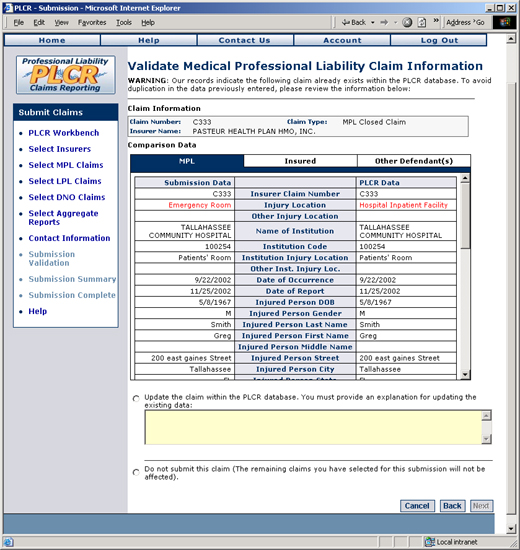
The Submission Validation Page
If you see this page it means that the claim form or aggregate report you are attempting to submit already exists in the PLCR database.
Notice that the Submission Validation page compares the data in the existing PLCR database, with that of your recently submitted data. If the data in the PLCR database does not match data in the current form/report you are attempting to submit, the data will display in red text. Submission data appears on the left of the page, while PLCR data appears on the right. See the example below.
You can switch between sections of the form or report by clicking the appropriate tab (in the example above; MPL, Insured, and Other Defendant(s)).
In order that data is not duplicated you must now choose to either update the claim form/aggregate report within the PLCR database or choose not to submit the claim form/aggregate report. To Update the Claim Form/Aggregate Report:
To Cancel the Submission of the Claim Form/Aggregate Report:
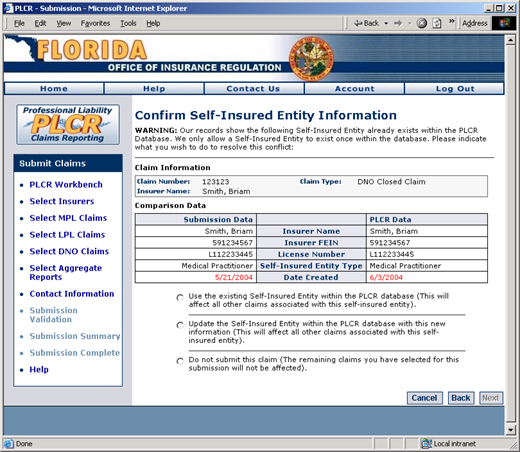
Re-submissions for Non-Licensed InsurersIf you accidentally or purposefully resubmit a closed claim form or aggregate report to the Office of Insurance Regulation and you are a non-licensed insurer An entity licensed by OIR under Chapter 624 (p. III) or Chapter 641 (p. I) of the Florida Statutes., the Submission Validation for Non-Licensed Insurers page will display after you click the Next button on the Confirm Contact Information page. The Submission Validation page for Non-Licensed Insurers appears below.
The Submission Validation Page for Non-Licensed Insurers
To Update the Claim Form/Aggregate Report:You may choose to use the existing Self-Insured An individual or entity that has not purchased liability insurance. Entity within the PLCR database, update the Self-Insured Entity within the PLCR database with your newly updated information, or choose not to submit the claim. If you chose one of the first two options:
To Cancel the Submission of the Claim Form/Aggregate Report:
|