Reporting Errors with PLCR (Bugs)
If you experience any problems using PLCR, or if you have suggestions
or comments you wish to post regarding PLCR, you can post them using the
Issue Tracking System.
To Access the Issue Tracking System:
Click the Contact
button from the I-Portal Navigation Header
buttons to the access the Add Issue page of the Issue Tracking System.
From this
page you may submit comments, enhancement suggestions, error messages,
and questions to the Industry Portal support staff.
The Issue Tracking System - Add Issue Page
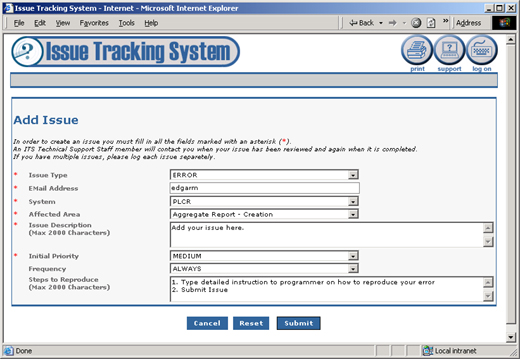
Select your Issue Type. Enter your email address. Select the system/application for which you are
submitting the issue. Select the affected area of the system/application. Write a description of the issue. Assign a priority to the issue based on how important
you consider the issue. Select the frequency with which the issue occurs. List any steps to reproduce the issue. Click the Submit
button to send your issue to technical support staff. This will display
the Issue Submission Confirmation page shown below and send a confirmation
email to the email address you provided. Upon
submitting an issue your issue is assigned a tracking number for your
benefit as well as the benefit of the technical support staff. You
may write this number down for future reference if you wish.
Issue Submission Confirmation
Page
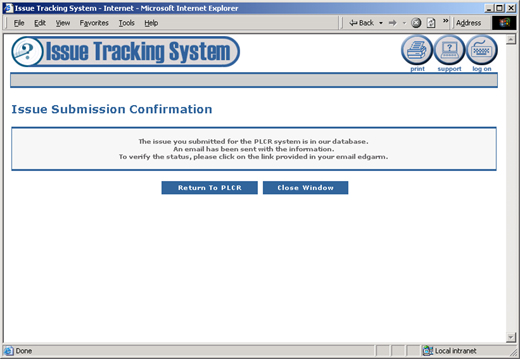
Click the Return
to PLCR button to return to the PLCR page last visited. Click
the Close Window button to exit
the Issue Tracking System and end your PLCR session.
To review the status of your issue:
You may review the information you sent to the technical support staff,
as well as the status of the issue, from the Issue Review page.
Click the link to your issue provided in the email
sent to your email address. The
Issue Review page will display.
The Issue Review Page
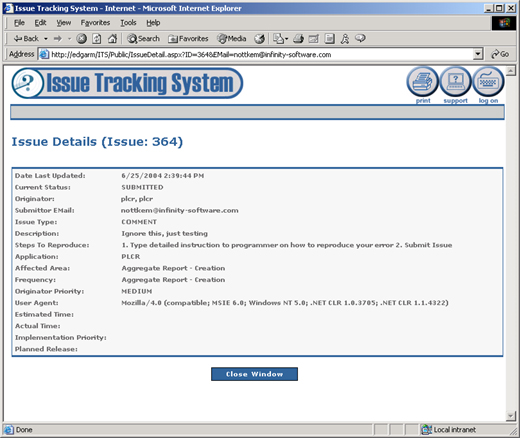
The current status of your issue will appear next
to the line "Current Status:". You'll
also notice a line for estimated time to resolve the issue, the actual
time required to resolve the issue, an implementation priority status
and the planned release date for your issue. Click the Close
Window button when you're finished with your review.
You may also review the status of an issue by logging into the Issue
Tracking System and selecting your specific issue using the Issue ID assigned
to your issue.
You may sort your list of issues by clicking on the issue column header
or use the Affected Area and Status drop down lists to refine your search.
Please
note that this page only displays the first ten issues at one time. To
access subsequent issues use the pagination links at the bottom of the
page.
Access the desired issue by clicking on its Issue ID.
|