Florida Department of Financial Services
Set Up
Licensed Insurers
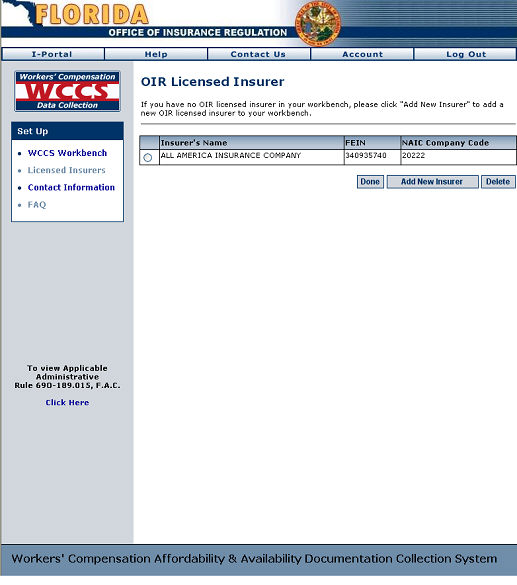
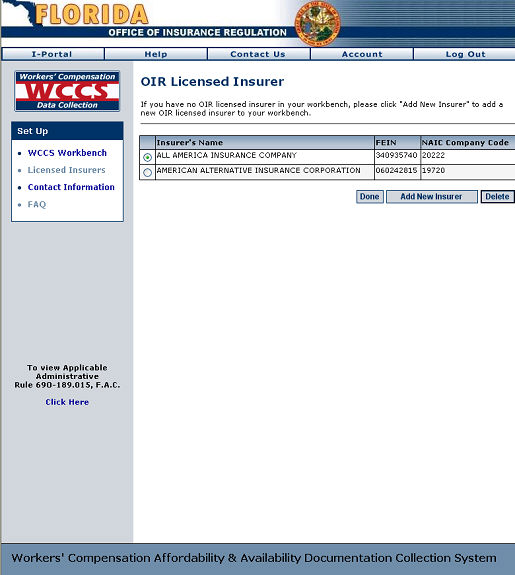
The Licensed Insurers screen allows users to add OIR licensed insurers to their workbench if an insurer of interest does not reside on the workbench. This feature is accessed by clicking the Set Up link in the WCCS Workbench task bar. The Licensed Insurers screen is automatically displayed.
All OIR licensed insurers that are currently on your workbench will be displayed in a table on the Licensed Insurers screen.
WCCS: Licensed Insurer Screen
Add New Insurer
If the OIR licensed insurer you are looking for does not exist in your workbench, click the Add New Insurer button to add that insurer to the system.
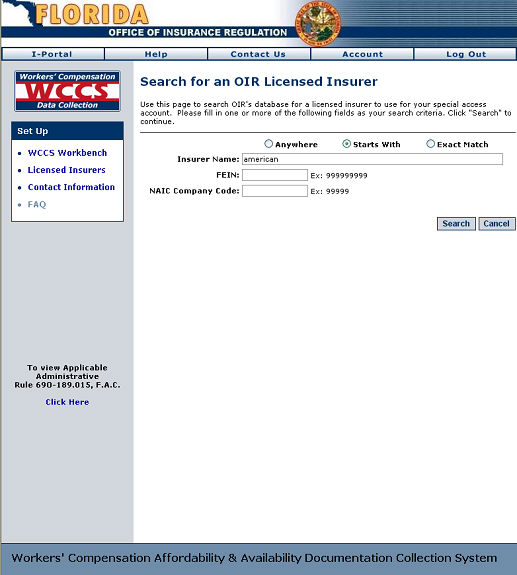
Enter the insurer name, FEIN, and/or NAIC company code to search the WCCS for the licensed insurer you want to add to your workbench.
Click the Search button to proceed.
WCCS: Search for an OIR Licensed Insurer
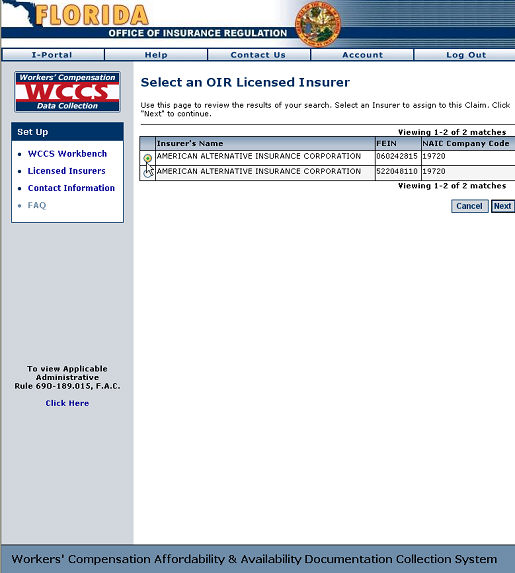
Select the insurer you are looking for by clicking the radio button next to the name of the insurer.
Click the Next button to proceed.
WCCS: Select an OIR Licensed Insurer Screen
6. Once an insurer is selected, the OIR licensed insurer will be available for selection for future submissions. To create a submission for the recently added insurer, begin the Create Submissions process and select the insurer when prompted to select an OIR licensed insurer.
WCCS: OIR Licensed Insurer Screen
Remove an Insurer
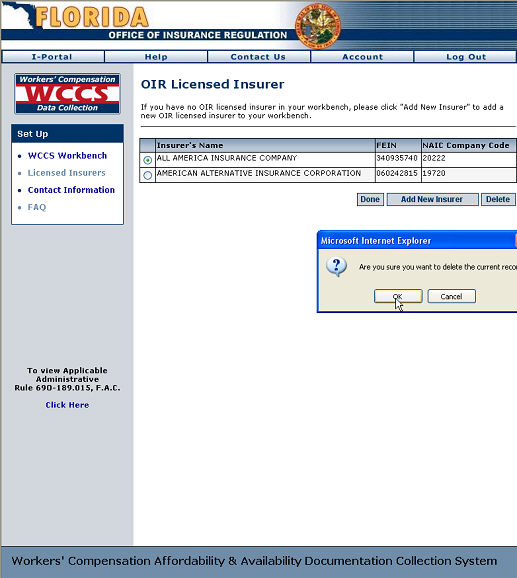
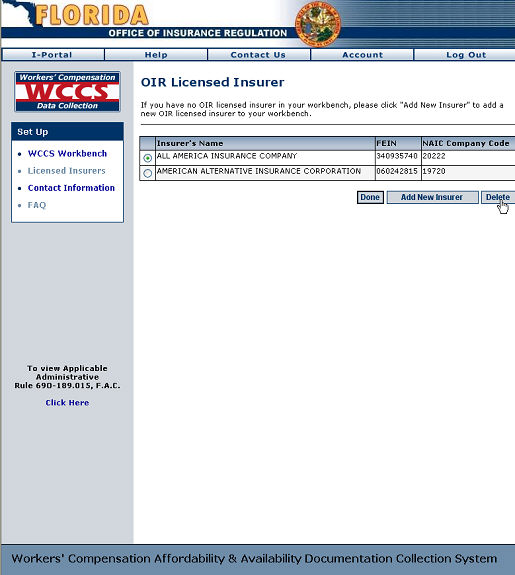
Should you wish to remove a licensed insurer from your workbench, select the appropriate insurer by clicking the radio button next to the name of that insurer.
Click the Delete button to proceed.
WCCS: Licensed Insurer Screen
A prompt will appear asking if you wish to delete the selected record. Click OK to delete the insurer.
WCCS: Licensed Insurer Screen - Delete Insurer