This submission type is used for insurers that
are otherwise eligible to submit claims data, but had no claims data to
report to the Florida Office of Insurance Regulation during the reporting
period.
If you do
have claims data in the state of Florida during the reporting period,
do
not submit this report. Instead, submit
normally by including the required closed claims and aggregate reports
for all claims information.
Click the No
Data Submission link from the PLCR Workbench task bar. The
No Data Submission Wizard will display.
The No Data Submission Wizard
Click the Next
button to initiate the No Data Submission Wizard. The
Select Claim A demand for payment from a self-insured entity or an insurer for losses sustained by a claimant. Type page will display.
Select the type of claim
you wish to submit; Closed Claim, or Aggregate Report for All Claims.
Selecting Closed Claim will allow you to create a No Data submission for
closed claims. Selecting Annual Aggregate Report for All Claims will allow
you to create a No Data submission for the annual aggregate report for
all claims.
By selecting the
Closed Claim option, you affirm that you have no Medical Professional
Liability, Directors & Officers Professional Liability, or Legal Professional
Liability closed claims to report for the previous calendar year.
By selecting the
Annual Aggregate Report for All Claims option, you affirm that you have
no aggregate claims data to report for the latest 10 years prior to the
previous 3 calendar years.
The Select Claim Type Page
If You Selected Closed Claims:
Click the Next
button. The Select Insurer An entity licensed by OIR under Chapter 624 (p. III) or Chapter 641 (p. I) of the Florida Statutes. Type page will display.
Select either OIR Licensed Insurer or Self-Insured An individual or entity that has not purchased liability insurance.
Entity. Each
claim must be associated with an insurer. Closed claims can be submitted
by OIR licensed insurers and self-insured entities.
The Select Insurer Type Page
Click the Next
button. Either the Select OIR Licensed Insurer or the Select Self Insured
Entity page will display.
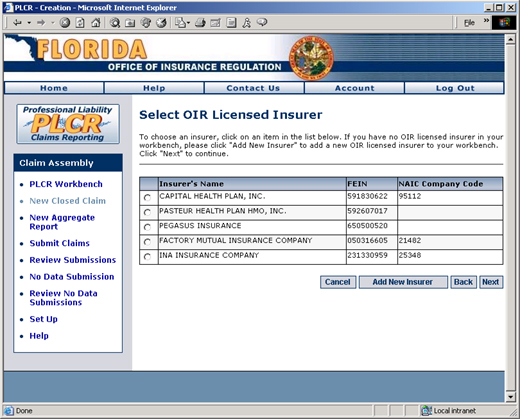
Select the insurer for whom you wish to file a
No Data Submission. If the insurer you wish to use does not display in
this list, exit the No Data Submission Wizard and setup the insurer using
the Setup page. Proceed to step 8 below.
The Select OIR Licensed
Insurer and
Select
Self Insured Entity Pages
or
If You Selected Aggregate Claims:
Click the Next
button. The Select OIR Licensed Insurer page will display.
Select the insurer for whom you wish to file a
No Data Submission. If the insurer you wish to use does not display in
this list, exit the No Data Submission Wizard and setup the insurer using
the Setup page.
Select OIR Licensed Insurer
Click the Next
button. The
Select Reporting Year page will display.
Select the reporting year. Annual aggregate report
for all claims can be filed for the previous year and one year prior to
the previous year.
The Select Reporting
Year Page
Finalizing the No Data Submission:
Click the Next
button. The
Confirm Contact Information page will display.
Verify that the contact
information is accurate. Update
the information if necessary.
The Confirm Contact Information
Page
Click the Next
button. The
Submission Summary page will display.
The Submission Summary
page displays summary information on the closed claim form or aggregate
report that you wish to submit. Verify
that this information is correct.
The Submission Summary Page
Check the checkbox next
to the affidavit statement to certify that you are authorized to submit
this liability report on behalf of the company referenced.
Type your full name (First
Name, Middle Initial [optional], Last Name) in the Name text field.
Type your title in the
Title text field.
Click the Submit
button to send your report to the Office of Insurance Regulation. The
Submission Complete page will display. An
email confirmation will be sent to your email address (or the one you
specified in the contact information section). The
closed claim form or aggregate report will be removed from your Workbench.
You may
view these items at any point by visiting the Review
No Data Submissions page.