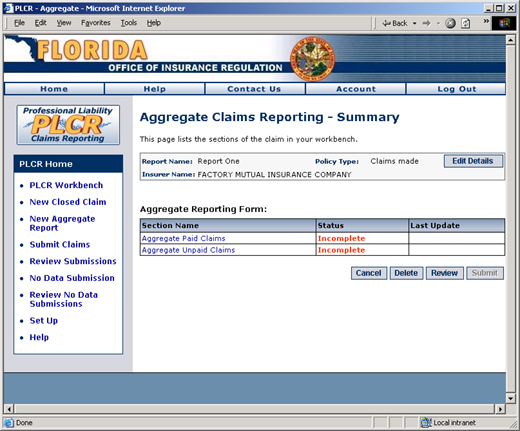


Step 2: Understanding the Aggregate Claims Reporting Summary PageNow that you've completed the initial steps of creating your new aggregate report, you're almost ready to get into the details. First though, you'll need to understand the central hub from which you'll access all sections of your aggregate report's details. This central hub is called the Aggregate Claims Reporting Summary page.
From the Aggregate Claims Reporting Summary page you may elect to:
The Aggregate Claims Reporting Summary page is displayed below. Notice that it is divided into two primary sections.
The Aggregate Claims Reporting Summary Page
Editing Aggregate Report DetailsThe first section of the Aggregate Claims Reporting Summary page displays the Report Name, Insurer Name and Policy Type. You can modify the Insurer Name and Policy type by clicking the Edit Details button.
The Edit Details Page
To Edit Details
Please note that there are certain limitations on editing fields from the Edit Details page. For example, it is not possible to add a new insurer from this page. For more specific information on editing these fields, please refer to Step 1 - Creating a New Aggregate Report. Note that these are the same fields you set up during the initial stage in the aggregate report creation process. Working on Specific Report SectionsIn order to submit your aggregate report to the Office of Insurance Regulation, each section of a report must be completed. There are two primary aggregate report sections: Aggregate Paid Claims and Aggregate Unpaid Claims. To begin editing the detailed sections of your report, click the aggregate report section name.
For details regarding the completion of specific report sections, refer to Step 3 - Inputting Aggregate Paid and Unpaid Claim Data.
Deleting Aggregate ReportsYou can delete an aggregate report by clicking the Delete button. Please be aware that all data you have entered for that particular report will be destroyed. It is not currently possible for you to recover a deleted report in PLCR. After clicking the Delete button you will be returned to the main PLCR Workbench. Reviewing Aggregate ReportsYou may review all specific details about your Aggregate Reports in summary format by clicking the Review button. All sections relevant to your aggregate reports will be displayed on a per section basis (e.g., Aggregate Paid Claims, Aggregate Unpaid Claims) on the Aggregate Claims Reporting Review page. You may return to the Aggregate Claims Reporting Summary page by clicking the Return to Workbench button at the bottom of the Aggregate Claims Reporting Review Page, or clicking the Back button of your Internet browser. Submitting Aggregate ReportsOnce you have completed all sections of your report, the status of each section will change from red, Incomplete text to green, Complete text. This will enable the Submit button. To submit your report to the Office of Insurance regulation, please review the Submitting Claims portion of this help system.
|